
Add additional prices to a product (purchase or sale)
Table of contents
This chapter explains how to add several purchase or sale prices to a product. This allows you, for example, to allocate a sales price per currency, with and without VAT, or a different purchase price per supplier in the case of multiple suppliers for the same product.
On a product page, under the “Price” tab, you can set a purchase price and a main selling price. To find out how to proceed, please refer to the point 2. Awarding a prize in the “Create a product” guide.
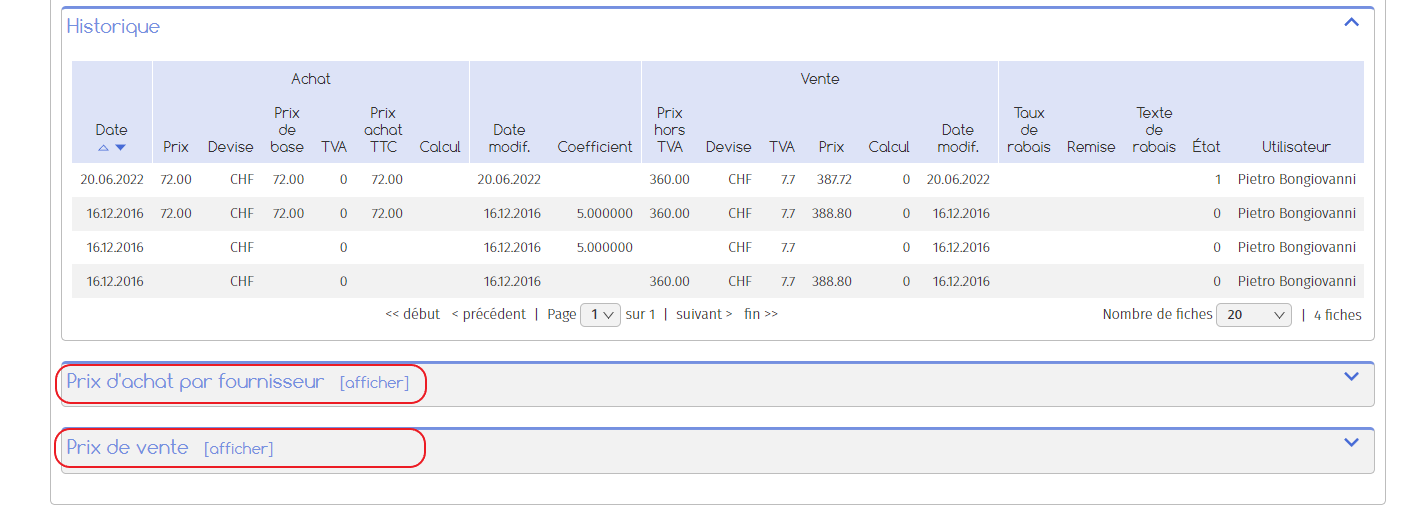
If you want to assign a second selling or buying price to a product, you can do so via the ‘Selling price’ or ‘Buying price by supplier’ tabs at the bottom of the page.
1. Add an additional sale price
In the product file, go to the “Selling price” tab at the bottom of the page.
To add an additional sale price :
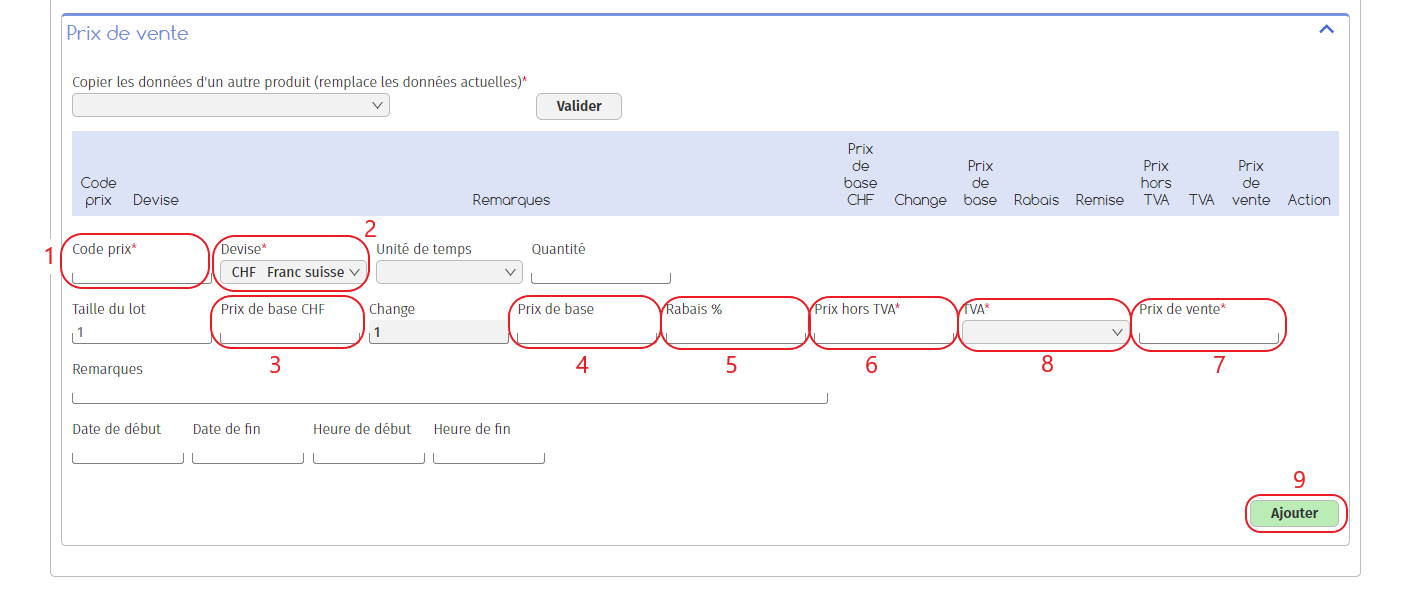
1. Assign a code ;
2. Select the currency for the price ;
You can choose to indicate your price in 3, 4, 6 or 7. The software will automatically fill in the other fields.
3. This field shows the price in Swiss francs, which is useful if you are adding a price in a foreign currency. If you enter the base price in CHF, the software will calculate the base price in foreign currency according to the exchange rate, and vice versa;
4. This field shows the base price in the currency selected in 2 ;
5. You can add an automatic discount to the price;
6. This field shows the price excluding VAT;
7. This field shows the price, including VAT if applicable. The software will automatically calculate the selling price or base price according to the VAT rate defined;
8. Choose the VAT rate ;
You are free to fill in the remaining fields as required.
9. Once you’ve finished, click on “Add”.
Later, when you create an invoice, for example, you will have the option of choosing between the different prices configured at the product addition stage:
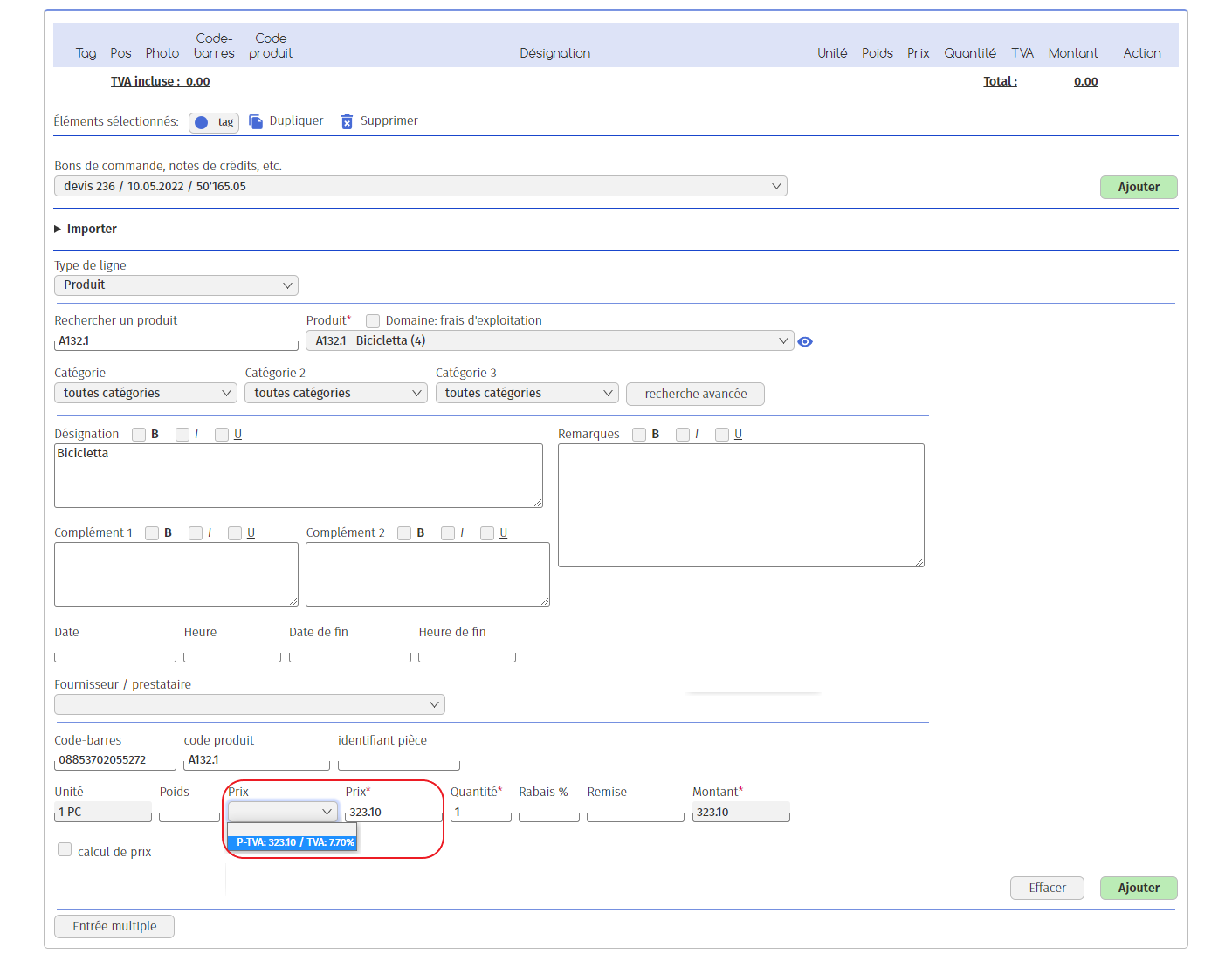
The empty section of the “Price” drop-down menu corresponds to the selling price set as standard.
2. Add an additional purchase price
In the product file, go to the “Purchase price by supplier” tab.
To add an additional purchase price :
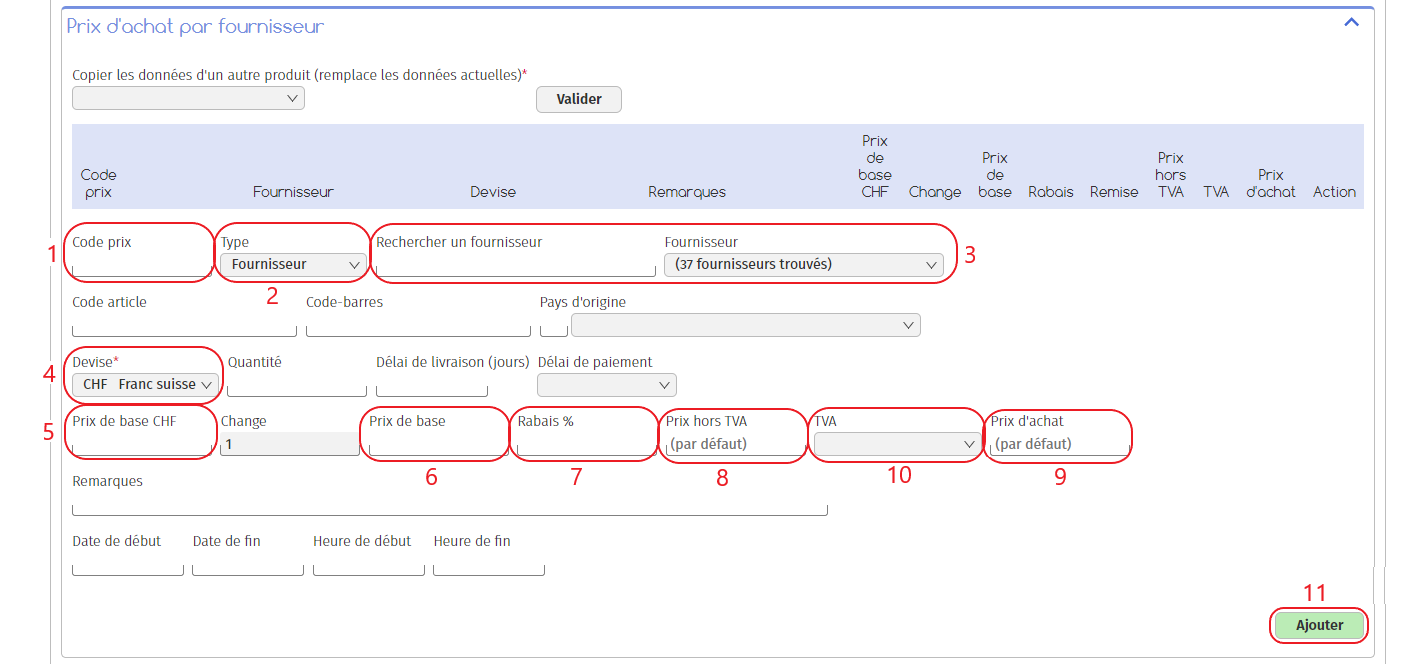
1. Assign a code ;
2. Choose the type of contact to link to the price (supplier or service provider);
3. Select the supplier (or service provider) associated with the purchase price;
4. Choose the currency ;
You can choose to indicate your price in 5, 6, 8 or 9. The software will automatically fill in the other fields.
5. This field shows the price in Swiss francs, which is useful if you are adding a price in a foreign currency. If you enter the base price in CHF, the software will calculate the base price in foreign currency according to the exchange rate, and vice versa;
6. This field shows the base price in the currency selected in 2 ;
7. You can add an automatic discount to the price;
8. This field shows the price excluding VAT;
9. This field shows the price, including VAT if applicable. The software will automatically calculate the selling price or base price according to the VAT rate defined;
10. Choose the VAT rate ;
You are free to fill in the remaining fields as required.
11. Once you’ve finished, click on “Add”.
Subsequently, when creating a purchase order, for example, you will have the option of choosing between the different prices configured at the product addition stage:
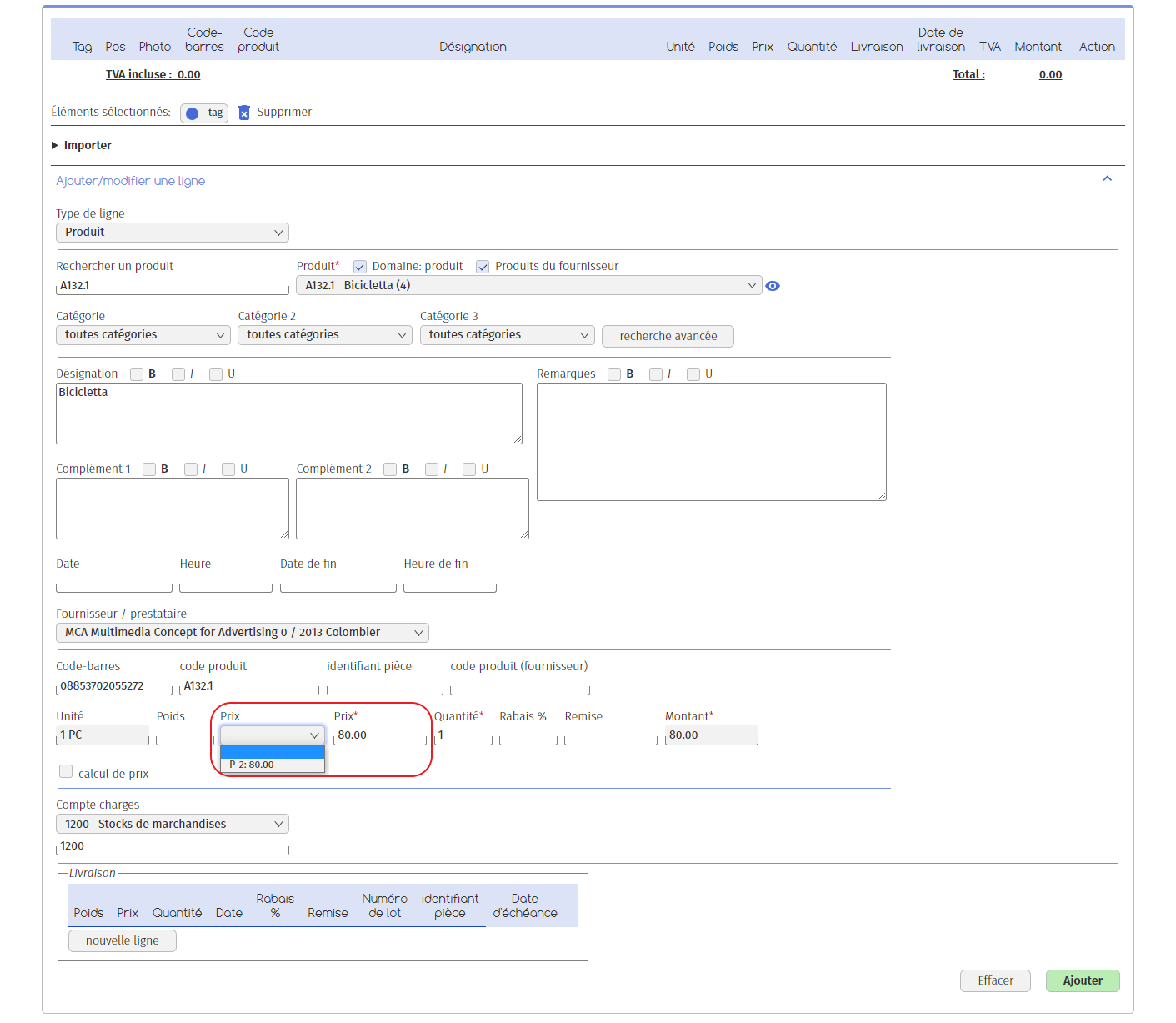
The empty section of the “Price” drop-down menu corresponds to the selling price set as standard.