Create a new donation
Table of contents
This chapter explains how to add a new donation.
1. Create a new donation
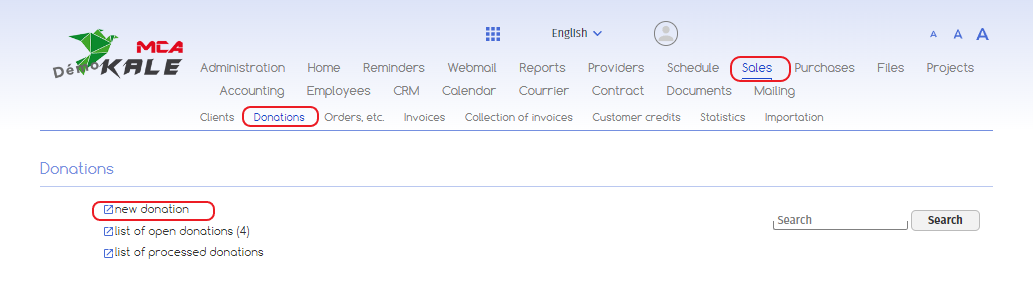
Click on ‘Sales’, then on ‘Donations’ and then on ‘New donation’.
You are now on a new page:
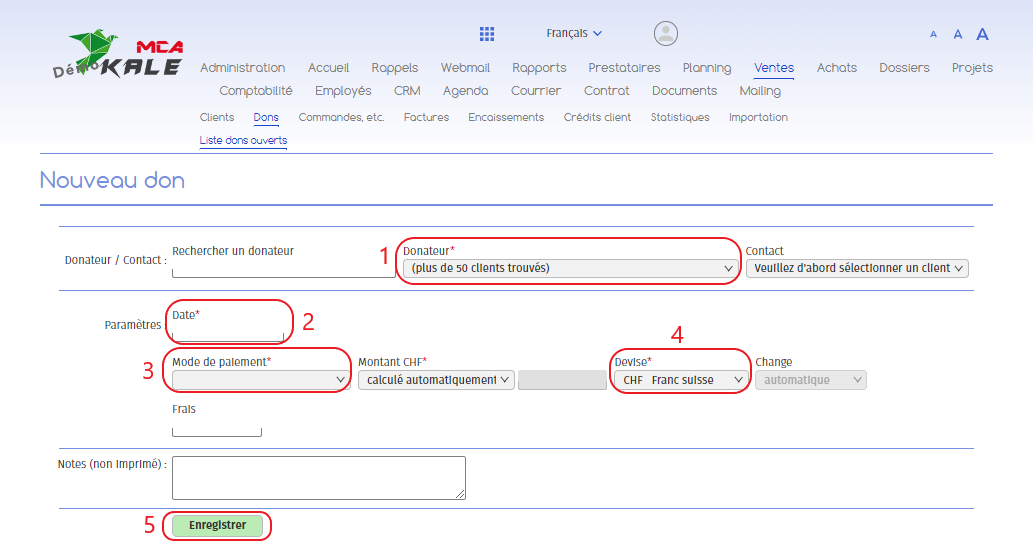
Below are the numbered explanations for each red frame in this image.
1. Choose the donor from the drop-down menu. If the donor is not listed, create a new donor by referring to the “Create a customer” guide. If the text refers to creating a customer, the process remains the same for creating a donor;
2. Enter the date on which the donation was made;
3. Enter the payment method (bank account or other);
4. Choose the currency ;
5. Click on “Save”.
2. Add the amount
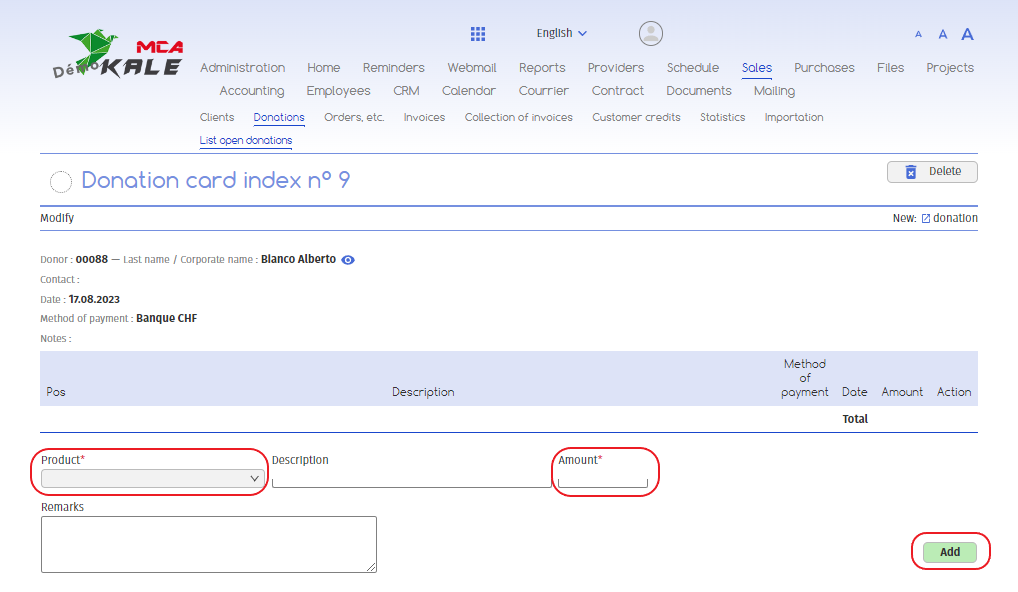
1. Add the type of donation ;
2. Add the donation amount ;
3. Click on “Add”.
3. Confirm the donation
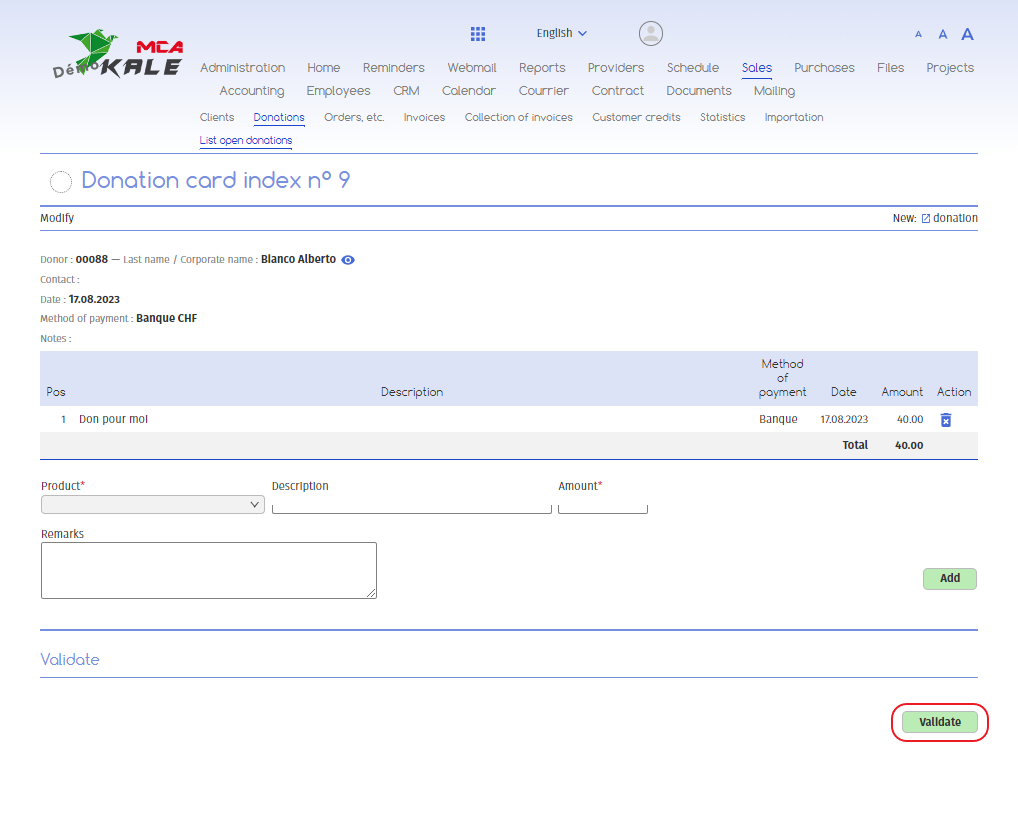
Once the donation has been completed, you can click on “Validate” for the donation to be considered processed.
4. Comments
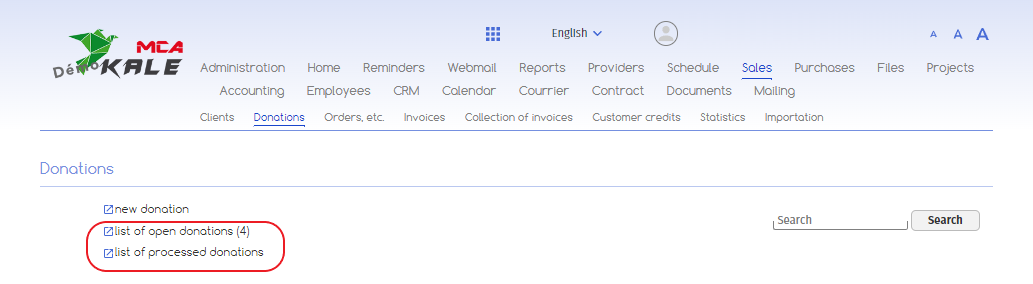
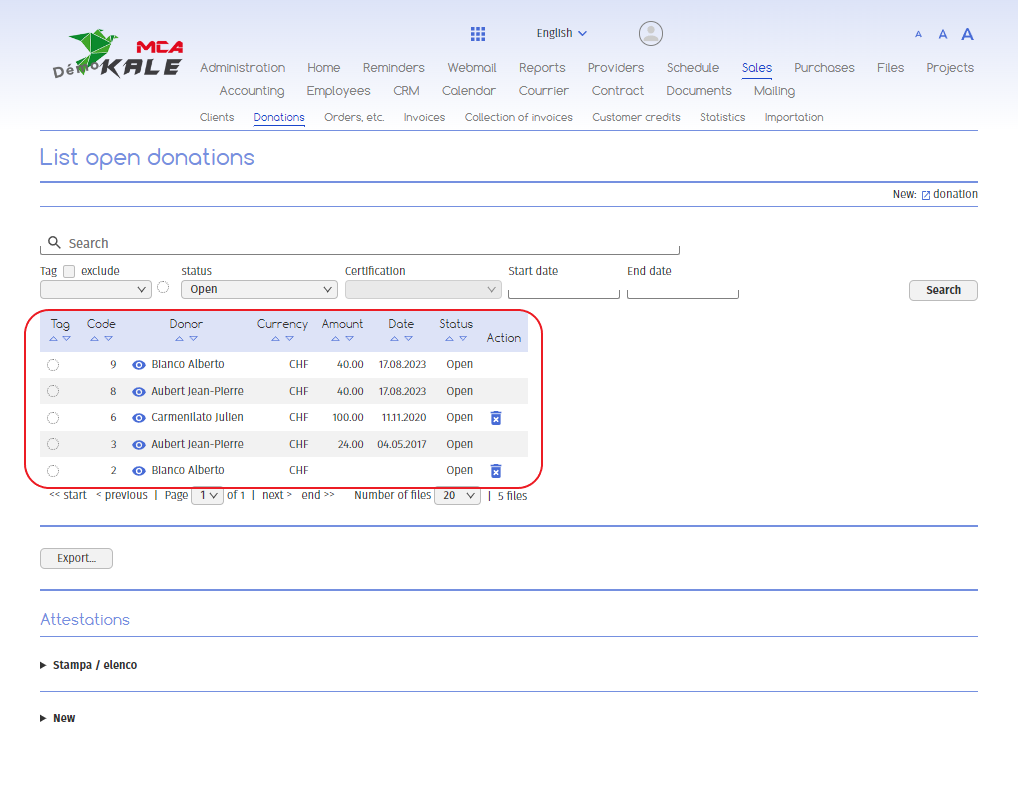
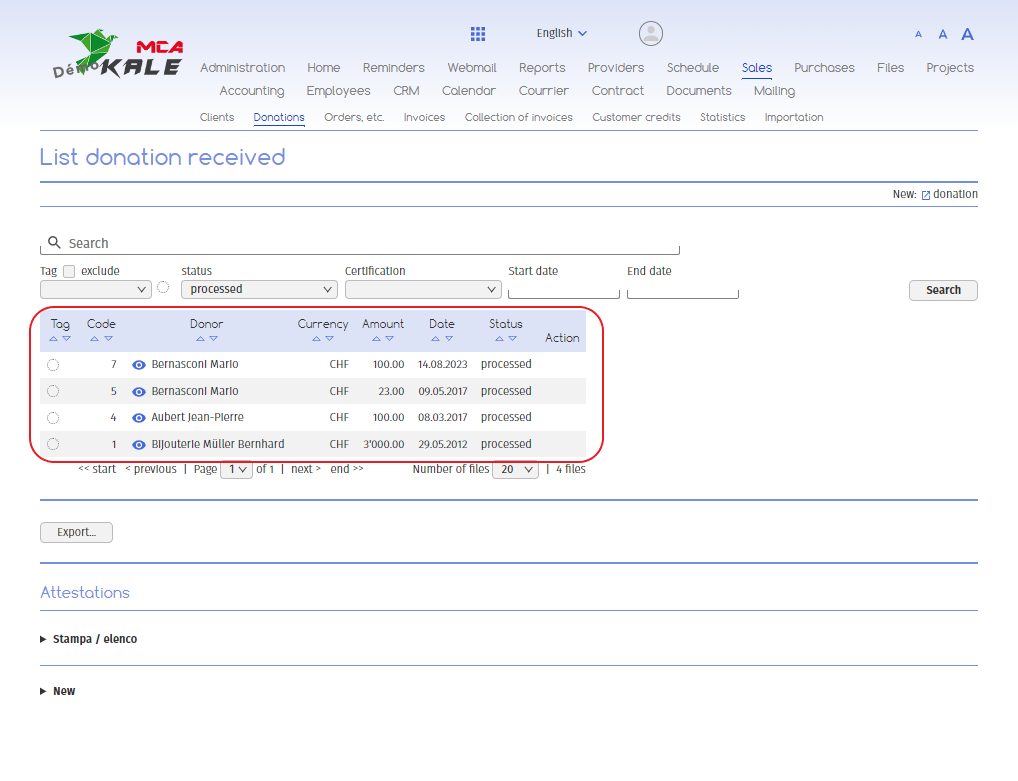
You can find your open or processed donations in the software by clicking on “list of open donations” or “list of processed open donations”.