
Post payments, fees and discounts
Table of contents
Let’s say you are a car garage and you buy cars from your supplier. If you pay your bill within 10 days, you get a 2% discount. On the contrary, if you exceed the 30-day period, you must pay a fee (reminder penalty). You must then account for the fees and discounts.
This guide explains how to post a payment, as well as fees and discounts.
There are 2 methods to do this :
- – The manual method, for suppliers who apply fees / discounts occasionally ;
– The automatic method, for suppliers who always apply the same discounts (only for discounts).
1. Manual method
1.1. Posting the payment
To begin, you must post the payment, as explained in the “Making a supplier payment” guide.
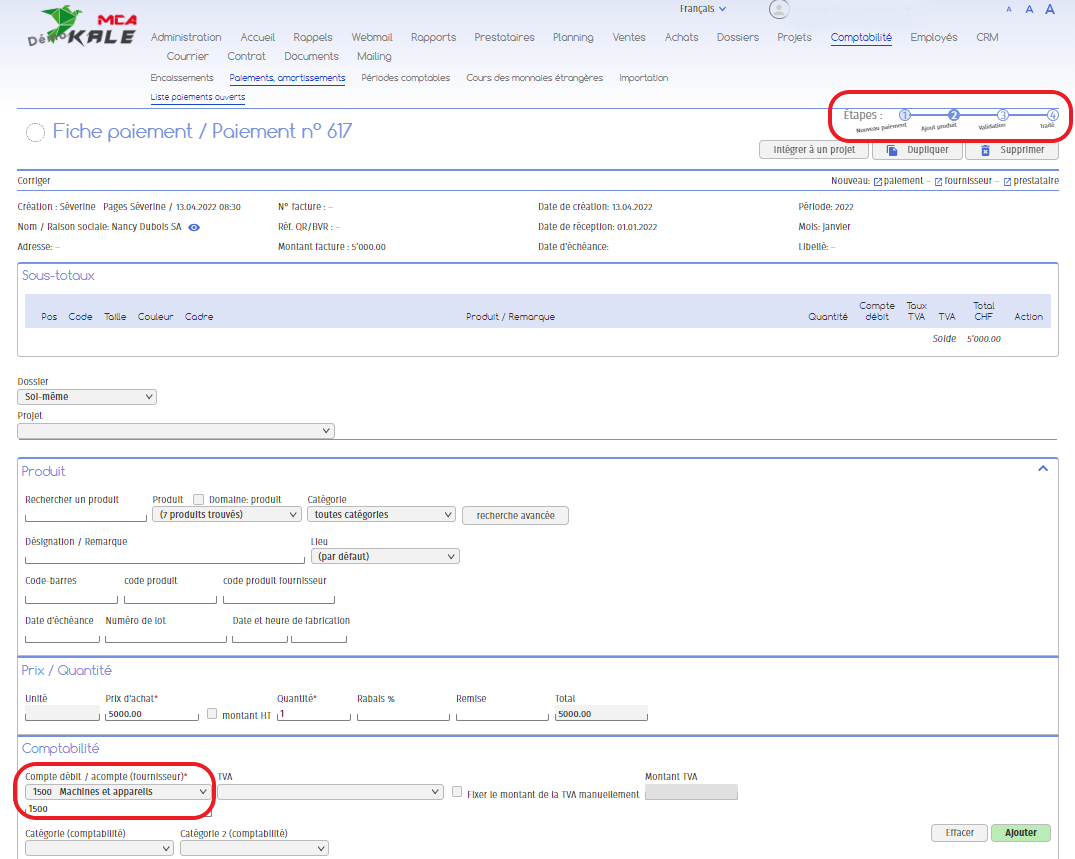
In the 2nd payment step, select an asset account in the “Debit Account” field. Here, for example, the selected asset account is “1500 Machine and Devices”.
At the 3rd step of the payment (validation step, the payment is in progress), you arrive on the following page :
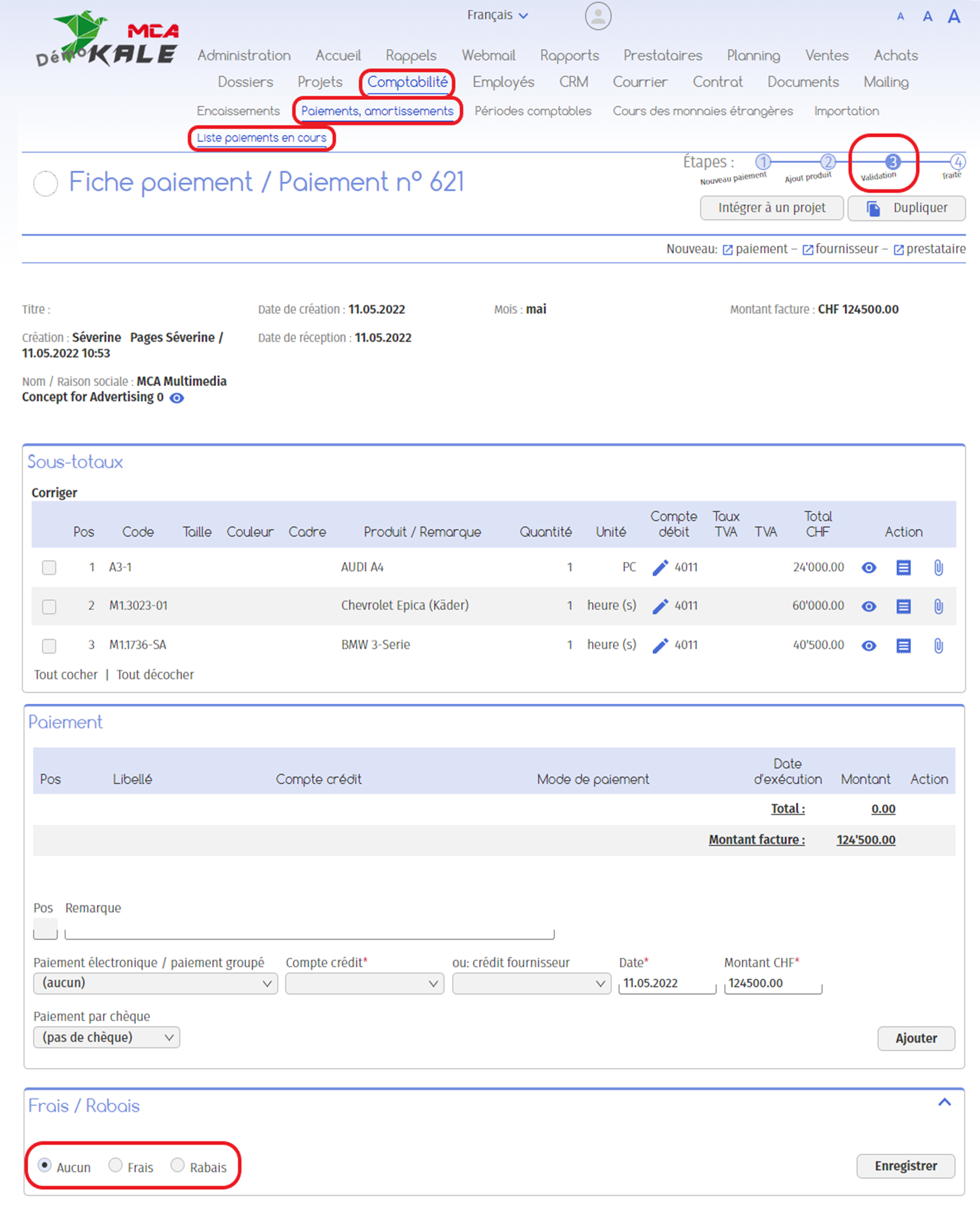
At the bottom of this page, in the “Fees/Discounts” section, you can check one of the 3 following boxes :
-
• None
• Expenses
• Reduction
The manual method is to manually check one of these boxes to add a fee or discount.
1.2. Fees
Let’s go back to our example: You have ordered CHF 124’500 worth of cars. However, you have exceeded the payment deadline, and you must therefore pay penalties of CHF 120.
To add a fee, check the appropriate box in the “Fees/Reductions” section of your payment.
The following fields will appear :

1. Insert the account 4900 – Discounts (the entry will be automatically recorded on the debit side of the account) ;
2. Add the amount of the fee (in our example CHF 120) ;
3. Select the type of VAT applied (or without VAT) ;
4. Click on “Save”.
You can then add the payment method to validate your payment.
1.3. Discounts
Let’s go back to our example: You have ordered CHF 124’500 worth of cars. You have an agreement with your supplier: if you pay the invoice within 10 days, you get a 2% discount on the total amount of the invoice.
To add a discount, check the corresponding box in the “Fees/Discounts” section of your payment.
The following fields will appear :

1. Insert a discount rate (a) or the amount of the discount (b) ;
2. Insert the account 4900 – Discounts (the entry will be automatically credited to the account) ;
3. Select the type of VAT applied (or without VAT) ;
4. Click on “Save”.
You can then add the payment method to validate your payment.
2. Automatic method
2.1. Discounts
To add automatic discounts, click on “Purchases”, “Suppliers”, then “list of suppliers”. Select the name of the supplier, and you will arrive on the following page.
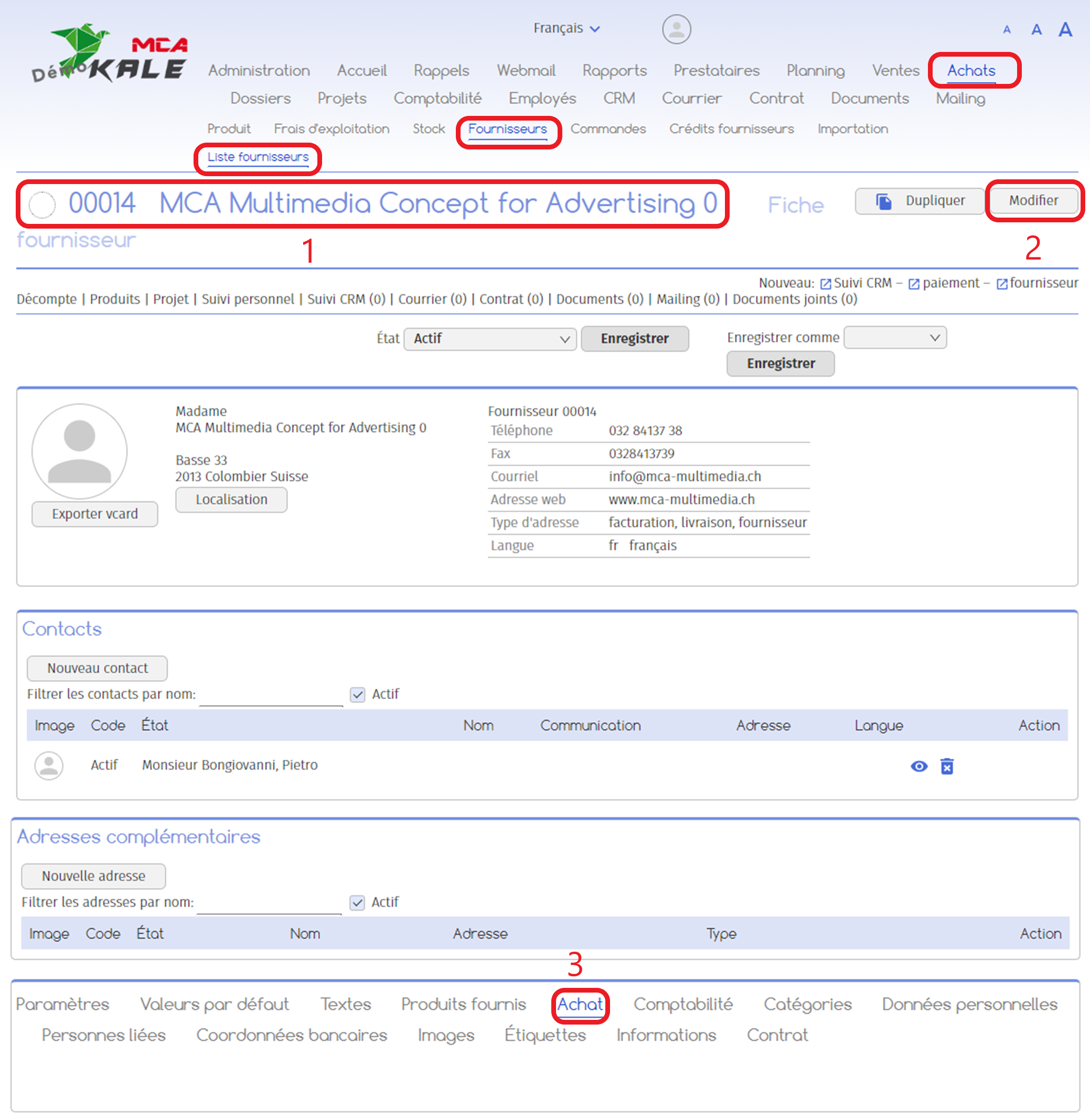
1. We are on the supplier card index of ” MCA Multimedia Concept for Advertising 0 ” ;
2. Click on « Modify » ;
3. Click on « Purchase » ;
The following fields appear :
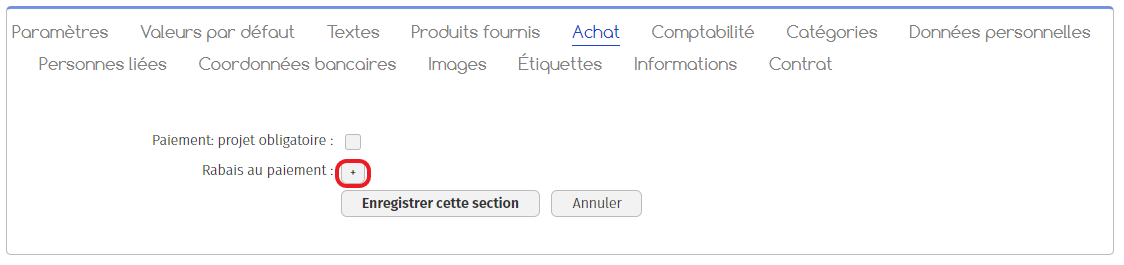
Click on “+”, and the following fields will appear :
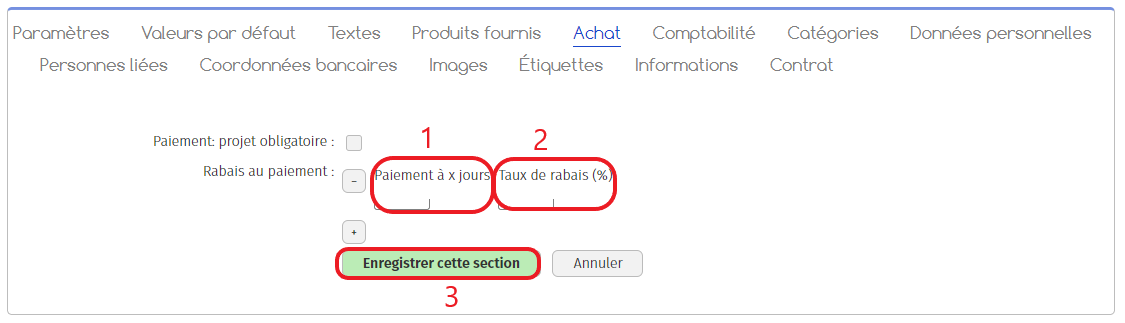
You have ordered CHF 124’500 worth of cars. You have an agreement with your supplier: if you pay the invoice within 10 days, you get a 2% discount on the total amount of the invoice.
1. Based on our example, we add the number 10 (because we have a discount for payment in 10 days);
2. Based on our example, the discount rate is 2%;
3. Click on “Save this section”.
Then, create your payment as explained in the manual for creating a payment. At the 3rd step of the payment (validation step, the payment is in progress), you arrive on the following page :
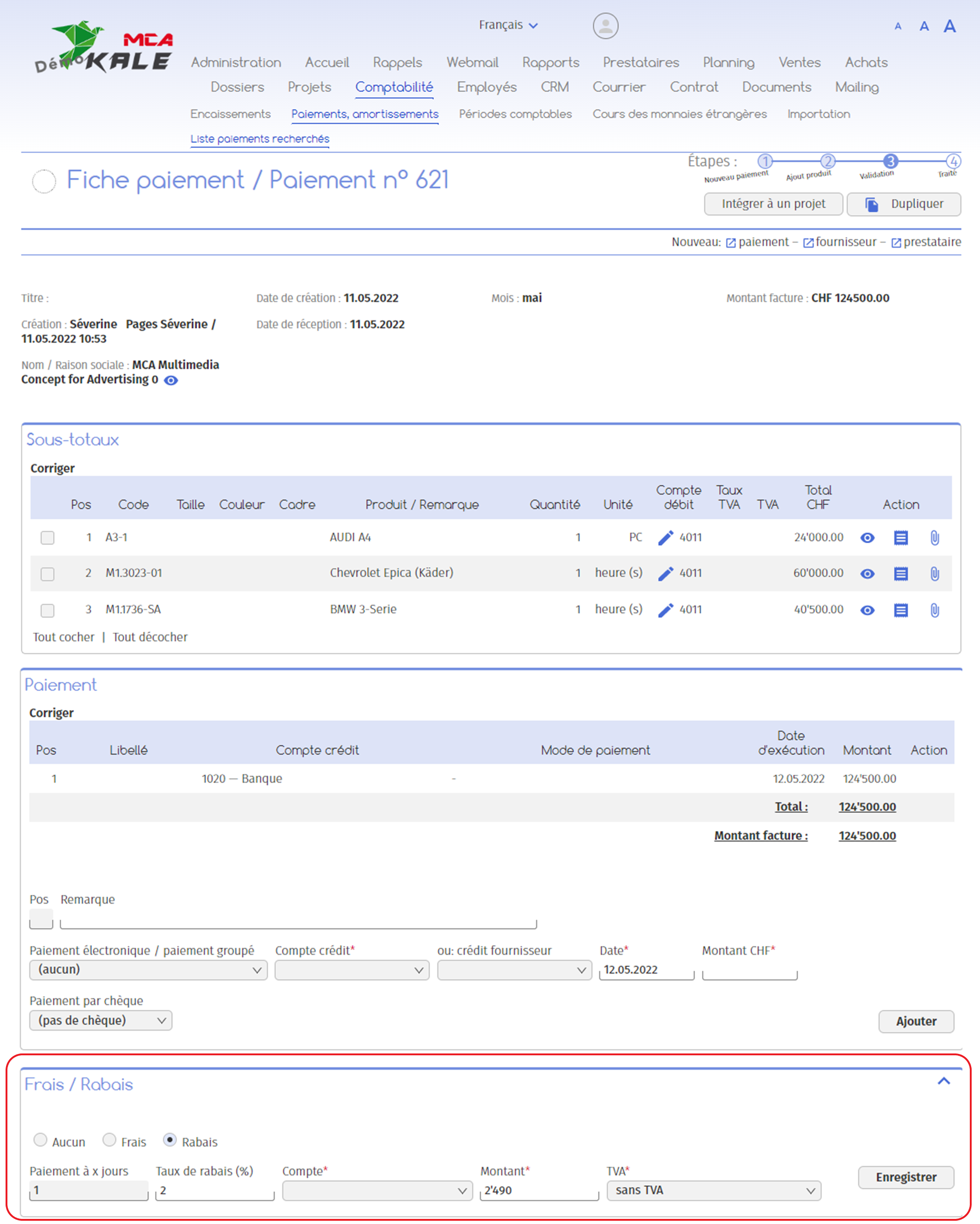
The “Discounts” section is filled in automatically. You still need to add an account (3900 – Discounts) and VAT if necessary. Finally, click on “Save” and continue your payment.